Accessing The Lists Using A News Reader
You may access any of the OSR ListServer lists using a standard news reader. Because the lists are private, however, you need to do the following:
- Point your newsreader to lists.osr.com
- Logon to the list server, if you want to be able to post to the list.
You log on to the lists using the email address and password you used when you joined the list.
Detailed Instructions for Using The Microsoft Outlook News Reader
If you've never used the Outlook News Reader before, this will tell you how. This is harder to explain than it is to do.
These instructions assume that you've already join the OSR lists of your choice, using the web interface. For ease of use, you should use the same email address and password for all lists that you join. This will allow you to logon to all the OSR lists using just this one username and password.
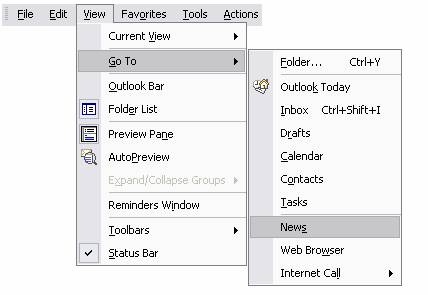
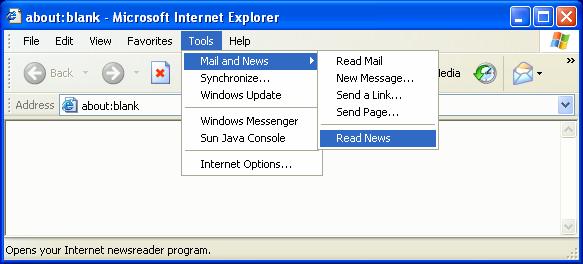
1) Start the Outlook Newsreader in one of the following two ways:
a) From Outlook’s View menu, select Go To, then select News:
b) From Internet Explorer and Seect Tools then Mail and News and then Read News:
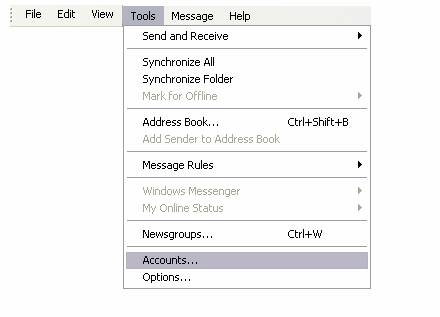
2) Once you’re in the Outlook Newsreader, select Accounts… from the Tools menu. This will bring up the Internet Accounts dialog:
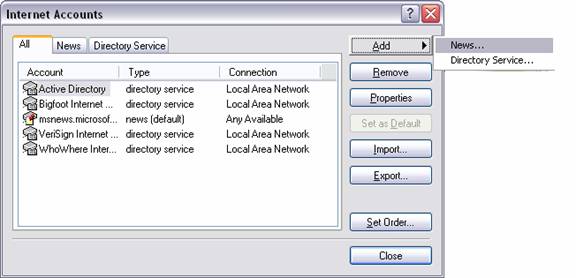
3) From the Internet Accounts dialog, click the Add button and select News... from the menu that appears:
4) You will now be presented with the Internet Connection Wizard.
a) On the Your Name screen, enter the name you wish to appear on your posts. Click Next >
b) On the Internet News E-Mail Address screen, enter the email address that you used to sign up for the lists. Click Next >
c) On the Internet News Server Name screen, enter lists.osr.com as the News (NNTP) server. Also, check the box marked My news server requires me to log on.
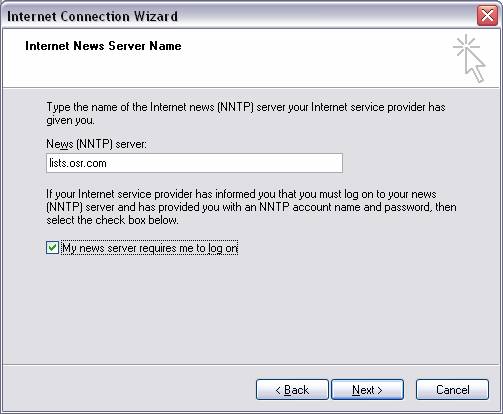
Click Next >.
d) On the Internet News Server Logon screen, enter the same email address used in the Internet News E-Mail Address screen in step 4b and also enter the password that you used to sign up for the lists. Make sure the Log on using Secure Password Authentication (SPA) is not checked. Click Next >.
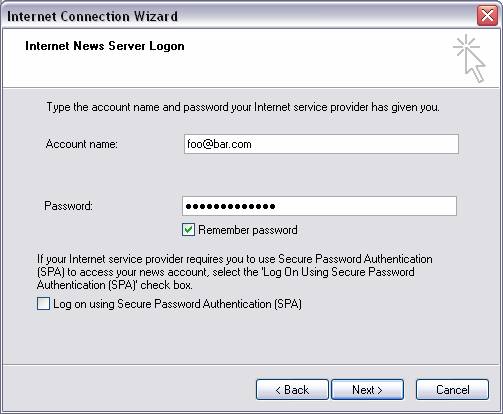
e) On the Congratulations screen, click Finish. You should now be back at the Internet Accounts dialog and you can simply click Close.
5) Once you have closed the Internet Accounts dialog, you should be presented with the following dialog, Click Yes
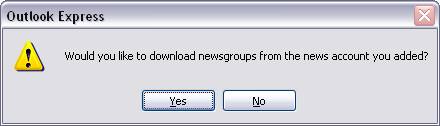
6) Once the Outlook Newsreader has contacted the server and retrieved a list of groups, you will be at the Newsgroup Subscriptions dialog. Select any newsgroups available on lists.osr.com that you have previously subscribed to and click Subscribe. Click OK.
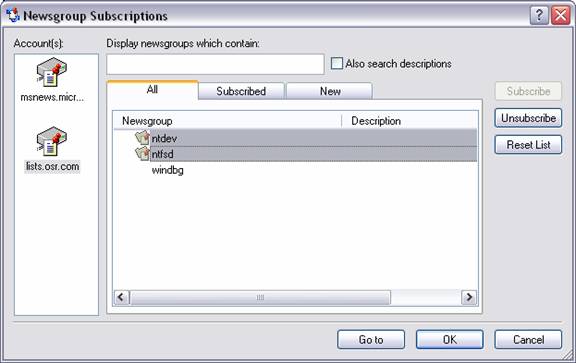
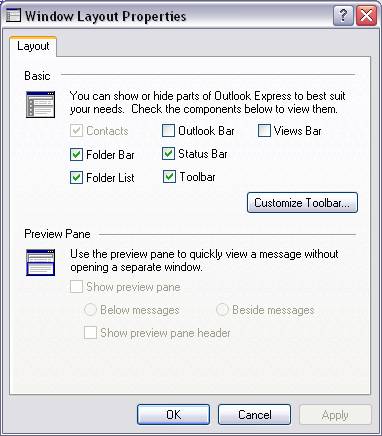
You should now see lists.osr.com in your Folders list on the left hand side of Outlook Newsreader with all of your subscribed groups underneath it.
If you do not see your Folders list, it might have been accidentally closed. To get it back all you need to do is go to the View menu, select Layout… and make sure that the checkbox next to Folder List under Basic is checked.
That's all there is to it!